How to Remove Comments From a Word Document: Complete Guide
Knowing how to remove comments from word document files before sharing is a professional requirement for anyone who collaborates using Microsoft Word. A document with tracked comments still visible can expose internal review notes, editorial disagreements, or personal annotations to recipients who should not see them. The ability to word remove comments individually or in bulk saves time and prevents accidental information disclosure. This article covers every method to remove comments from word document files, explains how to remove comments from a word document across different versions of Word, and addresses removing comments from word in documents shared across platforms.
Step-by-Step Methods for Removing Comments From Word
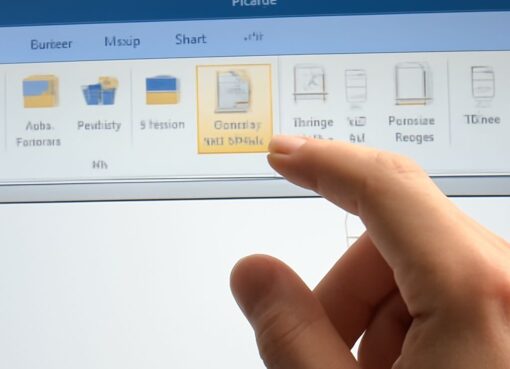
The fastest method to word remove comments in bulk is through the Review tab. Open the document, click Review in the ribbon, find the Comments group, and select Delete followed by Delete All Comments in Document. This removes all comments in one action. For how to remove comments from word document selectively, right-click any individual comment balloon and choose Delete Comment. This method works when only specific comments need removal while others remain for reference.
To remove comments from word document files using the Document Inspector, go to File, Info, Check for Issues, and select Inspect Document. Run the inspection, then select Remove All under Comments, Revisions, Versions, and Annotations. This method is the most thorough approach to removing comments from word because it also catches any hidden data that the standard Review tab delete might miss.
How to remove comments from a word document in older Word versions (2010 and 2013) follows the same Review tab path but the interface labels differ slightly. In those versions, the Delete dropdown shows Accept All Changes and Delete All Comments in Document as separate options. The functionality is identical; only the visual layout changed in Word 2016 and later.
Removing comments from word in documents that have been shared via OneDrive or SharePoint requires checking whether other collaborators have open editing sessions. Comments added in real-time collaborative sessions may not clear immediately if co-authors are actively viewing the document. Close all active sharing sessions before running a bulk comment deletion to ensure the remove comments from word document action applies to all pending comments.
For how to remove comments from word document files received from external sources, a useful safety step is to first save a copy with comments intact before clearing them. This preserves the review history locally while producing a clean version for distribution. Keep the original copy in a folder labeled with the document name and review date.
Bottom line: Use the Review tab’s Delete All Comments option for the fastest bulk deletion, and the Document Inspector for the most thorough result. Always check for hidden comments after any bulk remove comments from word document action by toggling the Show Markup option to confirm nothing remains. Running this check before sending any document reduces the risk of accidental disclosure.